Windows Recall: Snapshot Privacy Controls for Copilot+ PCs
A privacy guide to Windows Recall on Copilot+ PCs, including snapshots, Windows Hello, app and website filters, pause, delete, and work PC policy.
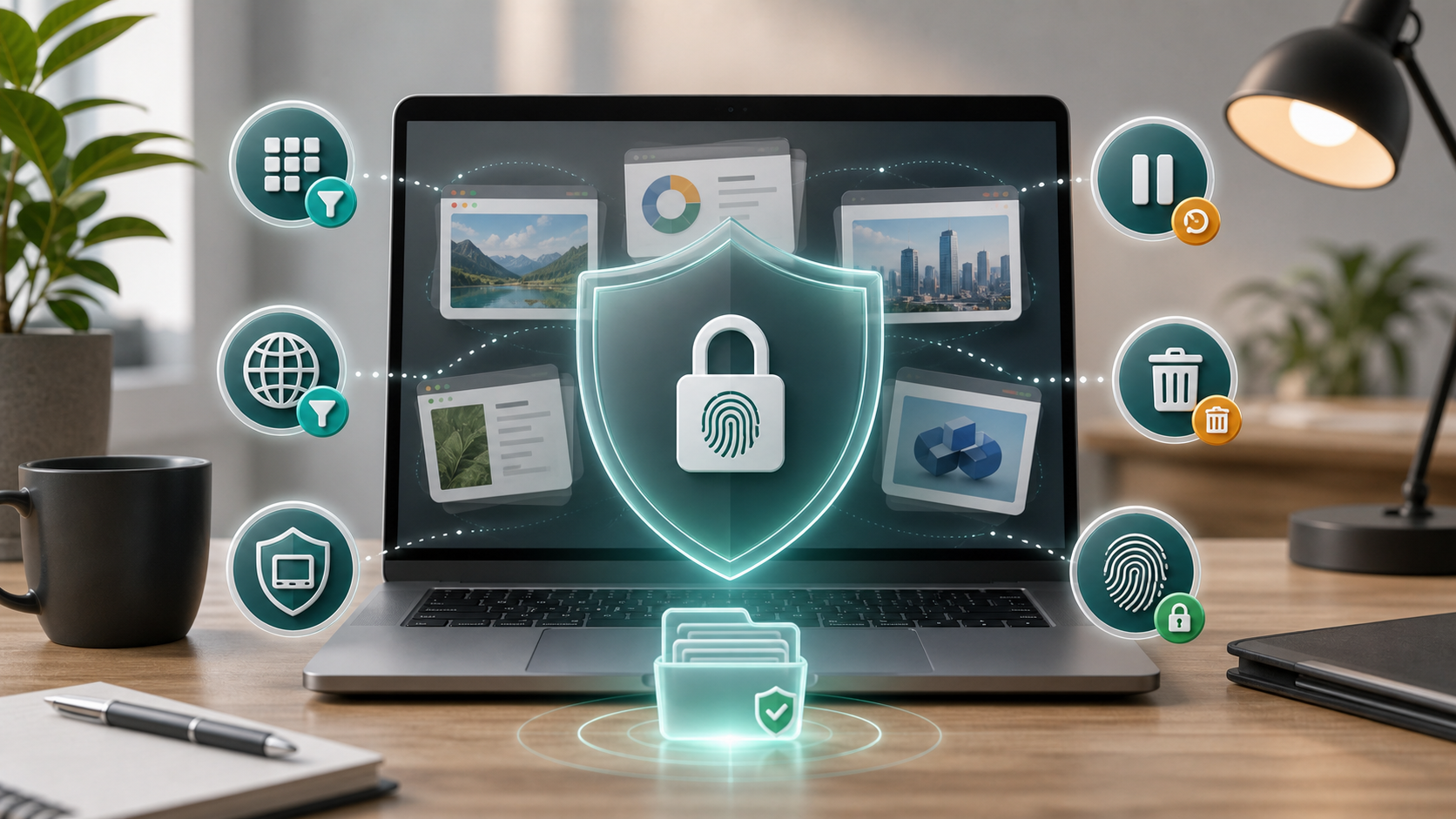
Updated May 18, 2026. Recall is a search feature built on screenshots of PC activity, which makes setup choices unusually important. Users should decide what can become searchable before letting the feature build a history of their work.
What Becomes Searchable
Microsoft describes Recall as a Copilot+ PC feature that helps users search for things they have seen on their PC. It works by saving snapshots that can later be searched. When a user finds something, Recall can help them jump back to the app, website, image, or document shown in the snapshot.
That design is useful for people who lose track of files, websites, research, receipts, messages, or project context. It can also help people remember where they saw a detail without knowing a file name or browser history entry.
The same design is why the privacy settings matter. A snapshot may include content from apps and websites unless those are filtered, private browsing is used in a supported browser, or saving is paused or turned off. Microsoft says Recall does not save snapshots of certain protected content, such as DRM-protected content, and it provides options for filtering apps and websites.
The user decision is not simply “Recall good” or “Recall bad.” It is whether the benefit of searchable on-screen memory is worth the responsibility of managing what gets saved.
Start With The Snapshot Setting
Start in Settings, then Privacy & security, then Recall & snapshots. That is where Microsoft directs users to manage Recall and snapshot preferences.
On a compatible Copilot+ PC, check:
- Whether saving snapshots is turned on.
- Whether Recall appears in the taskbar or system tray.
- Whether the device requires Windows Hello to access Recall.
- Whether app filters are already configured.
- Whether website filters are already configured.
- Whether storage limits and retention settings fit your use.
If Recall is not available, the device may not be a supported Copilot+ PC, may not have the required update, or may be managed by an organization. A work or school PC may also have administrator policies that control whether Recall can be used.
Access Control Comes First
Microsoft redesigned Recall so that it is opt-in and protected by Windows Hello authentication. The company says users need Windows Hello to access saved snapshots. Microsoft also describes security architecture that keeps Recall content protected on the device.
For everyday users, the practical meaning is simple: do not use Recall casually on a device with weak sign-in hygiene.
Check these basics first:
- Use Windows Hello with a strong PIN, fingerprint, or facial recognition.
- Do not share the device PIN with family, roommates, coworkers, or helpers.
- Keep a separate standard account for guests.
- Lock the PC when stepping away.
- Avoid enabling Recall on a shared or lightly managed device.
If someone else can unlock the Windows account, Recall's privacy controls are much less meaningful. The feature is built around local access control; the lock screen is part of the protection model.
App Filters Need To Be Proactive
App filtering is one of the most important Recall settings.
Microsoft's support documentation says users can add apps to a filter list so Recall does not save them in snapshots. If you later discover that Recall saved content from an app you should have filtered, Microsoft says you can delete all content from currently saved snapshots for that app from search results or while viewing a snapshot.
Before turning on snapshots, filter apps that regularly show sensitive information.
Consider filtering:
- Password managers.
- Authenticator apps.
- Banking or tax apps.
- Health apps.
- Private messaging apps.
- Secure work apps.
- Remote desktop or virtual desktop clients.
- Client portals.
- HR, payroll, or legal software.
- Apps used by someone else on the same PC.
The right list depends on your work. A designer may filter client review tools. A freelancer may filter invoicing and tax apps. A student may filter school portals. A journalist may filter secure communication tools.
Website Filters Depend On The Browser
Recall also supports website filtering. Microsoft's support page says users can add websites to filter at any time under Recall & snapshots settings. Website filtering depends on browser support, and Microsoft Learn notes that browser apps need to implement Recall activity APIs for website filtering support.
This means users should not assume every browser behaves exactly the same. Check the supported browser and website filtering behavior on the PC you actually use.
Useful website filters may include:
- Webmail.
- Online banking.
- Password-manager web vaults.
- Cloud document folders.
- Medical portals.
- Government portals.
- School or student portals.
- Client dashboards.
- Admin panels.
- Personal journals or private communities.
If a site should never appear in a snapshot, add it before using Recall. If it already appeared, delete the related saved content.
Pause, Filter, Delete, Reset
Recall gives users more than one way to control saved content.
Pausing snapshot saving stops future snapshots temporarily. Turning off snapshot saving stops the ongoing capture behavior. Deleting snapshots removes stored content. Filtering apps or websites prevents future saved content from those places, and Microsoft also provides ways to delete existing content related to a specific app or website.
Do not confuse these controls:
- Pause: useful for a temporary sensitive task.
- Turn off saving: useful if you do not want Recall collecting snapshots.
- Filter: useful for apps and sites that should always be excluded.
- Delete: useful for content already saved.
- Reset: useful if you want to remove Recall data and return settings to defaults.
For private work, pausing is not enough if snapshots already exist. After a sensitive mistake, check whether existing snapshots need to be deleted too.
Click To Do Adds Another Surface
Microsoft's Click to Do in Recall lets users act on text and images in snapshots, such as copying text or opening a website from selected content. Microsoft's support page says that when using Click to Do in Recall and selecting the Now option, a snapshot is taken without private browsing windows, filtered apps, and filtered websites.
The practical point is that actions inside Recall can create or use snapshots. Users should understand how filters apply before using Recall as a work surface.
If you are dealing with confidential content, do not assume that “I only clicked something once” has no artifact. Review filters, snapshot state, and deletion controls.
Work PCs Need A Policy Decision
Recall is especially important to review on work-managed devices.
For a personal PC, the user decides whether the convenience is worth it. For a work PC, there may be contracts, confidentiality obligations, employer policies, client requirements, or regulated-data rules that decide the answer.
Before enabling Recall on a work device, ask:
- Does company policy allow it?
- Are client systems or documents excluded?
- Are virtual desktop windows protected?
- Are browser filters supported for the browser you use?
- Can admins manage the feature centrally?
- What happens if the PC is lost, reassigned, or repaired?
- Are snapshots included in backup or device-management workflows?
If the answer is unclear, do not turn it on for work until IT or the account owner has set a policy.
When Leaving It Off Is Reasonable
Recall may not be appropriate for every user or device.
Avoid it or keep it off if the PC is shared, used by children or guests, used for sensitive client work without a policy, often unlocked around other people, or used for health, legal, financial, security, or confidential communication workflows that you cannot reliably filter.
It may also be a poor fit for people who do not want to manage settings. Recall requires attention. A user who will never review filters, delete snapshots, or pause capture before sensitive work may be better off leaving snapshot saving disabled.
That is not a failure of the feature. It is a realistic match between tool and behavior.
Before Turning Snapshot Saving On
Before enabling Recall, run this checklist:
- Confirm the PC is supported and updated.
- Confirm Recall is opt-in and understand whether snapshots are currently saved.
- Set up Windows Hello and a strong account PIN.
- Filter sensitive apps before using Recall.
- Filter sensitive websites before using Recall.
- Test website filtering in your actual browser.
- Learn how to pause snapshot saving.
- Learn how to delete individual snapshots.
- Learn how to delete all content for a specific app or website.
- Review storage and retention settings.
- Keep Recall off for shared or policy-restricted devices.
After enabling it, review saved snapshots during the first few days. If you see content you did not expect, fix the filter and delete the saved snapshots.
FAQ
Is Windows Recall available on every Windows 11 PC?
No. Recall is for compatible Copilot+ PCs and depends on device support, updates, and policy settings.
Does Recall send snapshots to Microsoft?
Microsoft says Recall processes data locally on the device and is built with privacy and security controls. Users should still manage what is captured and who can access the Windows account.
Can I stop Recall from saving specific apps?
Yes. Microsoft says users can add apps to a filter list in Recall & snapshots settings so those apps are not saved in snapshots.
Can I filter websites?
Yes, but website filtering depends on browser support. Microsoft says developers need to implement Recall activity APIs to support website filtering.
What should I do if Recall already saved sensitive content?
Delete the relevant snapshots. Microsoft says users can delete content from saved snapshots for a specific app or website, and can also delete individual snapshots or reset Recall data.