Google Workspace AI Is Moving From Drafting To Doing
Google Workspace is adding Gemini Spark, AI Inbox, voice tools, and Pics. Here is what teams should check before AI starts acting across work apps.
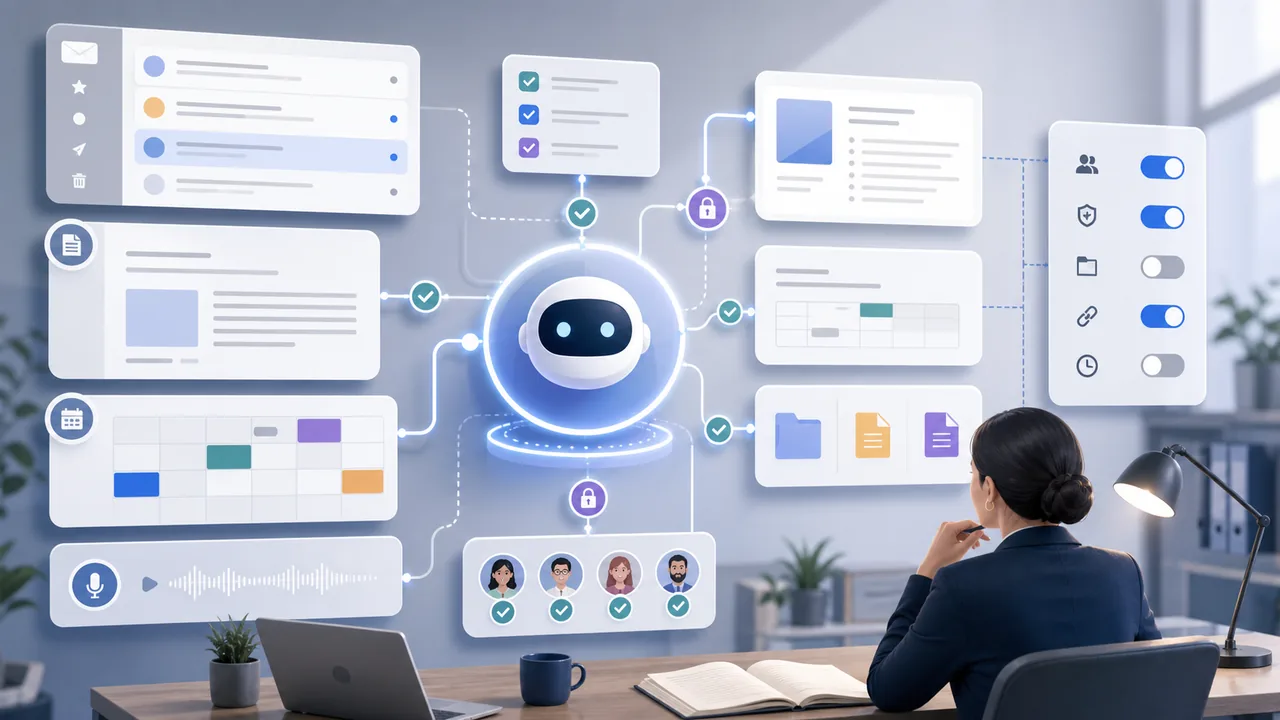
Updated May 24, 2026. Google's latest Workspace AI update is easy to mistake for another bundle of Gemini features. The more important shift is where the work is happening. AI is moving deeper into Gmail, Docs, Keep, Drive, and the Gemini app, and some of the new tools are designed to search, organize, draft, prioritize, and eventually act across the surfaces where a workday already lives.
That makes this a different story from a general Google I/O recap. For a remote worker, a small business owner, or an admin at a lean company, the question is not whether Gemini can write a cleaner email. The sharper question is what happens when an assistant can look across an inbox, pull from documents, prepare a reply, surface files, and sit in the background as a 24/7 agent.
Google's May 19 announcement names four main Workspace updates: conversational voice features in Gmail, Docs, and Keep; a new image creation and editing tool called Google Pics; expanded AI Inbox features; and Gemini Spark, a personal AI agent that can take action under a user's direction. Each feature has a different risk profile. Treating them all as "AI in office apps" is too blunt.
The point is not that Workspace AI suddenly becomes unsafe. The point is that the accountability line moves. Drafting help can be reviewed at the end of a task. Action-taking help has to be reviewed before it changes the task.
If you want the wider launch map, GearBriefly's earlier Google I/O agentic Gemini briefing covers the broader Search, Gemini app, subscription, and availability story. This piece stays narrower: Workspace workflows, inbox access, voice input, admin controls, and when an assistant starts acting across work apps.
The Shift Inside Workspace
For the last two years, productivity AI mostly meant help with a visible task: summarize a thread, draft an email, make a slide, clean up a paragraph, or pull a point from a file. The new Workspace update moves closer to an operating layer for everyday work.
Gmail Live is framed as a voice-driven way to search the inbox and answer practical questions, such as travel details or school updates. Docs Live is described as a way to talk through an idea while the system organizes the draft and, with permission, pulls relevant details from Gmail, Drive, Chat, and the web. Keep is getting a similar capture-and-organize pattern for spoken notes and lists.
Those examples matter because voice changes the shape of the prompt. People talk more loosely than they type. A quick spoken request can include names, dates, client details, travel plans, health appointments, school information, or workplace tension that a user might not have typed into a prompt box. The convenience is real, but so is the need to pause before treating a voice interface as casual.
The same shift shows up in AI Inbox. Google says AI Inbox is expanding beyond high-end access with new capabilities such as contextual draft replies, relevant file surfacing, and task management controls. That is not only message sorting. It is inbox interpretation plus suggested action.
Start With The Inbox
The inbox is where this update becomes practical first. Gmail already holds receipts, travel confirmations, job conversations, client notes, school messages, calendar threads, support tickets, files, and occasional personal material that does not belong in a work decision.
AI Inbox is useful when it turns an overloaded queue into a short list of tasks. It can also create quiet mistakes if a user accepts the suggested framing too quickly. A draft reply can sound confident while missing context from a phone call. A surfaced file can be the wrong version. A dismissed suggestion can hide something that mattered later.
The working habit should be simple: let AI Inbox triage, but do not let it close the loop without review. For routine updates, a suggested draft may save time. For client disputes, billing questions, legal-adjacent matters, HR messages, or security incidents, the draft should be treated as a starting point and nothing more.
Teams should also separate private inbox help from shared workflow. A user asking Gmail Live about a flight gate is one thing. A team relying on AI Inbox to decide which customer issue is urgent is another. The second case needs a documented rule for when a person verifies the summary, who owns the task, and where the decision is recorded.
That distinction is the editorial line for this rollout: personal retrieval can move fast, but team decisions should move slower until the review loop is visible.
Spark Is The Bigger Boundary Change
Gemini Spark is the part to watch most closely. Google describes it as a 24/7 personal AI agent in the Gemini app that can help navigate digital life, take action under the user's direction, and integrate with Workspace apps. Google also says it is designed to ask first before high-stakes actions such as sending emails or adding calendar events.
That last detail matters. An assistant that drafts is one category. An assistant that acts is another. A high-stakes confirmation prompt is helpful, but it does not remove the need to understand what the agent has seen, what it is allowed to use, what it is allowed to change, and which actions count as high stakes.
For a normal workday, the boundary can get blurry. Sending an email is obvious. Moving a calendar event may be obvious. But what about archiving a thread, marking a task done, drafting a reply that changes tone, preparing a meeting brief from sensitive files, or pulling third-party project data into a Workspace prompt? Those are not dramatic actions, yet they can still affect trust, records, and team coordination.
That is why Spark should not be judged only by the launch demo. The practical test is whether a user can answer four plain questions before enabling it for real work:
- Which Workspace apps can it use?
- Which third-party integrations are connected?
- Which actions require confirmation?
- Where can the user or admin review activity after the fact?
If those answers are unclear inside a company, Spark belongs in a pilot group before it becomes a default work habit.
Voice Needs A Different Review Habit
Voice input can make Workspace AI feel less like a tool and more like a colleague sitting nearby. That is good for speed. It can be bad for precision.
A typed prompt gives people a chance to edit before sending. Voice often skips that review moment. Someone may ask Docs Live to turn a rough spoken plan into a project memo while also mentioning a customer name, a private deadline, a sensitive dependency, or an internal complaint. If Docs Live then pulls relevant details from Gmail, Drive, Chat, and the web with permission, the user still needs to check which details were selected and whether they belong in the final document.
The same is true for Keep. Turning a spoken brain dump into organized notes is useful for errands, meeting prep, or personal planning. It is riskier when the note becomes a task list that another person will later treat as complete or accurate.
The better habit is to review the output at the boundary where it becomes durable: before an email is sent, before a document is shared, before a task is assigned, before a calendar item is created, and before a note is copied into a team system. Voice can speed up the first draft. It should not erase the last check.
The better move is to treat voice as input, not intent. A rambling prompt may reveal what someone is thinking, but it does not automatically define what the company should record, send, or assign.
Google Pics Is Not The Same Risk
Google Pics belongs in the same announcement, but it should not be lumped into the same governance bucket as AI Inbox or Spark.
Pics is an image creation and editing tool. Google says it is built for more precise creative control, including object selection, text editing and translation inside images, Workspace integrations starting with Slides and Drive, and collaborative canvases. It is launching first to a limited group of Trusted Testers, with wider rollout planned for Google AI Pro and Ultra subscribers and Workspace business previews.
For most teams, the immediate concern is not inbox privacy. It is brand accuracy, rights, disclosure, and review. AI-edited visuals can be useful for internal decks, event flyers, social graphics, and quick design drafts. They can also create misleading images, fake product states, incorrect translated text, or visual material that looks more approved than it is.
The rule for Pics should be separate: do not use generated or edited visuals as evidence of a real event, product test, partnership, customer quote, or official brand asset unless that evidence exists elsewhere. A generated image can support a presentation. It should not create a claim.
Admin Controls Matter More Than The Demo
Google's administrator documentation gives the less glamorous part of the story. Admins can enable or disable Gemini features and the side panel across services such as Gmail, Calendar, Drive, Docs, Sheets, Slides, Forms, Vids, Meet, Chat, and Workspace Studio. The same page says the default setting for Gemini features in Workspace services is on.
There is a detail in that documentation that smaller teams should read carefully: even if Gemini is turned off for a specific app, users may still access that app's data from Gemini in another app. Google's example says a user in Gmail can ask Gemini about a Drive file when Gemini is off for Drive.
That does not mean the controls are useless. It means admins need to think in terms of data access paths, not only app-by-app toggles. If the goal is to limit how AI touches sensitive Drive files, switching off a single side panel may not be enough. The access model, smart features and personalization settings, Gemini app access, integrations, meeting note controls, Workspace Studio, and audit logs all belong in the same review.
Google's privacy materials say Workspace with Gemini includes confidentiality, security, and compliance controls, and that Workspace data is not used to train or improve underlying Gemini, Search, or other systems outside Workspace without permission. That is an important distinction from consumer AI assumptions. It does not remove the need for company-specific rules. A privacy commitment answers one class of question; it does not decide which employees should connect third-party apps, which files are appropriate for AI help, or which outputs require approval.
For readers comparing this with individual account settings, the separate GearBriefly guide to Gemini Apps Activity and work data privacy covers the personal activity-history side. Workspace controls are a different layer because administrators, editions, integrations, and company data policies can change what the user sees.
Integrations Change The Blast Radius
The integration story deserves its own check. Google's help documentation says Gemini in Workspace can connect to third-party apps and services such as Asana, Mailchimp, and Salesforce, if the Workspace edition and app requirements are met and an admin enables integration access. The user then grants access through the connection flow. Google also says deleting the connection through Google Account security settings stops data sharing between Gemini in Workspace and that integration.
For a small company, that is where an AI productivity feature becomes a data map. A prompt in Gmail may pull from a project tool. A marketing campaign question may touch a mailing platform. A sales prompt may reach CRM records. None of that is automatically wrong, but it changes who needs to be involved in the rollout.
Before enabling integrations broadly, decide which apps are approved, which teams can connect them, which account owns the connection, and what kind of data is off limits. Also decide how to remove access when an employee changes roles or leaves. An AI integration should not become a forgotten side door into a business system.
A Sensible Rollout For Small Teams
The safest way to use this Workspace update is not to ban it. The safer move is to separate low-risk speed gains from action-taking workflows.
Start with features that help individuals draft, summarize, organize notes, or find routine inbox details. Keep those outputs private until a person chooses to share them. Then move more slowly with features that send messages, create calendar events, mark work complete, connect third-party services, or act across several apps.
What matters now is sequencing. A team can learn a lot from AI-assisted inbox search and private note cleanup without also enabling every integration or agentic workflow on day one.
For a small team, the rollout can be modest:
- Pick one group to test Workspace AI features for two weeks.
- Define what data cannot go into prompts or connected integrations.
- Require review before AI-generated replies are sent to customers or partners.
- Keep AI-created meeting notes and inbox summaries out of sensitive HR, legal, finance, or security work unless there is a clear policy.
- Review admin settings for Gemini features, Workspace smart features, integrations, and audit logs.
- Write down the first three mistakes the pilot group catches.
The last point matters. The goal of a pilot is not to prove the tool is good. It is to find where the workflow gets too trusting.
What Not To Assume Yet
This update does not mean every Workspace account has every feature today. Google's announcement uses different rollout language for different pieces: some features are rolling out this summer, some are in preview, and Google Pics begins with Trusted Testers before a broader rollout. Gemini Spark in Workspace is described as coming soon in preview for business customers.
It also does not mean every AI action has the same privacy, audit, and permission model. Gmail Live, Docs Live, Keep voice capture, AI Inbox, Pics, Gemini integrations, and Spark each touch different surfaces. Availability, admin controls, user consent, connected apps, and review steps can differ.
The practical read is straightforward: Google Workspace AI is becoming more capable because it is getting closer to the work itself. That is exactly why teams should treat this as an operations change, not just a feature announcement.
If AI only helps write a paragraph, the main risk is a bad paragraph. If AI can search the inbox, find files, prepare replies, connect to business systems, and act in the background, the review process has to move closer to the workflow. The feature set is getting more useful. The guardrails need to become more specific.
Source Links
- Google: New ways to create and get things done in Google Workspace
- Google Workspace: Generative AI security, compliance and privacy
- Google Workspace Help: Manage access to Gemini features in Workspace services
- Gmail Help: Use integrations with Gemini in Workspace
- Google Workspace Help: Google Workspace with Gemini