Android Theft Protection: The First-Minute Phone Security Plan
A practical Android Theft Protection guide covering Identity Check, trusted places, Remote Lock, and what to do in the first 15 minutes after theft.
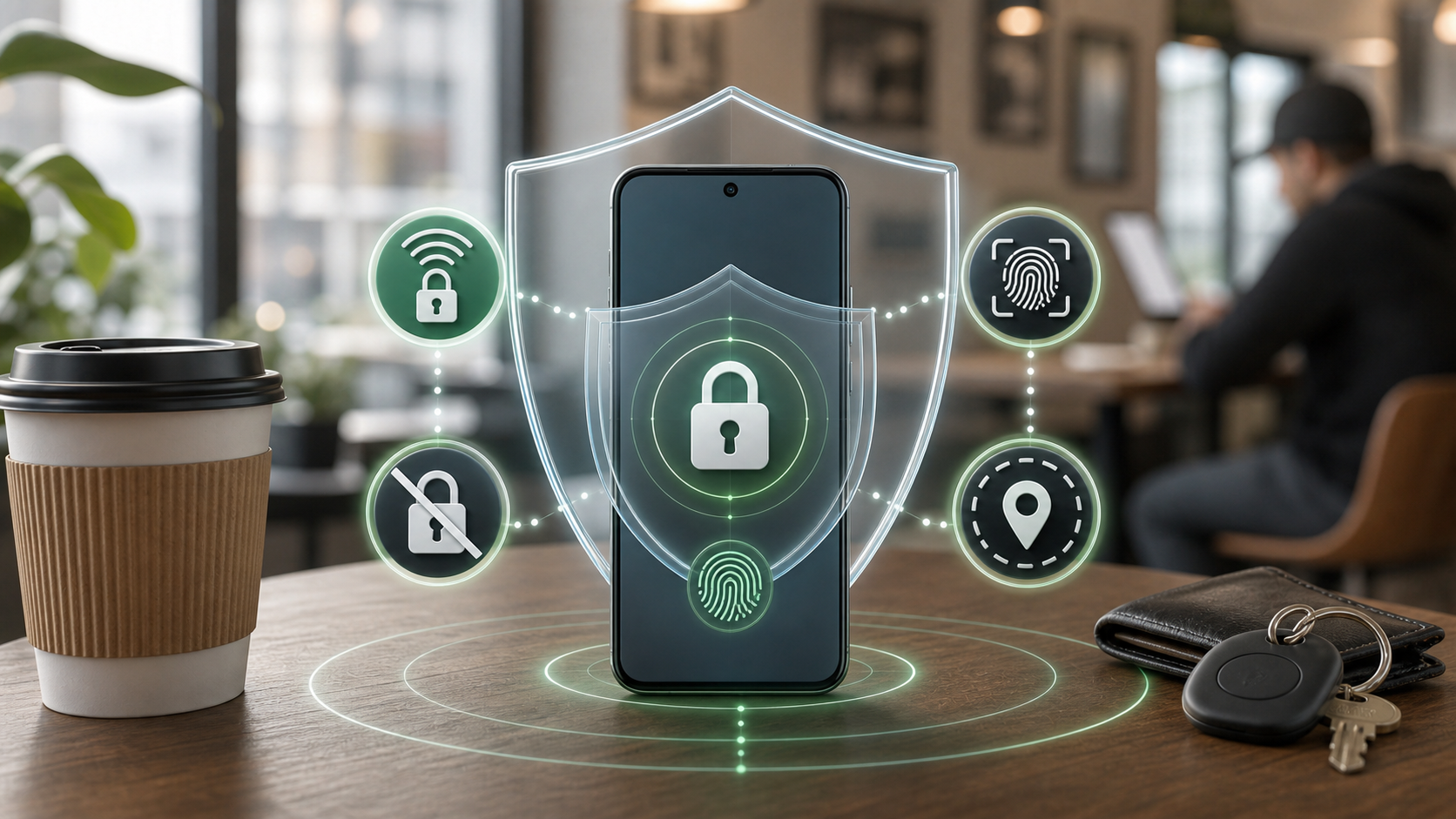
Updated May 18, 2026. Phone theft is a timing problem. The first few minutes matter because a thief may try to change account settings, disable recovery paths, or exploit a weak screen lock before the owner can react.
The First-Minute Risk
Google describes Android theft protection as a set of defenses before, during, and after a theft attempt. The goal is to protect both the physical device and the personal data on it.
Theft Detection Lock uses device signals to detect a possible snatch-and-run theft and lock the screen. Offline Device Lock can lock the screen after the device is taken offline, a common tactic when someone wants to prevent tracking or remote commands. Remote Lock lets a user lock a lost or stolen phone from another device by going to android.com/lock and using the phone number associated with the device.
Identity Check adds a different layer. It can require biometric authentication for sensitive actions when the device is outside a trusted location. Google says this can make it harder for someone who knows the device PIN to change critical settings, access passkeys, turn off theft protection, or take over signed-in accounts.
The important idea is layered defense. One feature locks after suspected theft. Another responds when the device goes offline. Another gives the owner a browser-based lock path. Another protects account and device settings when the phone is away from trusted places.
Why A PIN Alone May Not Be Enough
Many people assume a phone PIN is enough. The problem is that thieves may learn or observe a PIN before taking the device. If the thief can unlock the phone, they may try to change the screen lock, add their own biometric, access password managers, disable location tracking, or reset account recovery paths.
Identity Check is designed for that scenario. When the phone is outside trusted locations, sensitive actions require biometric verification. That means knowing the PIN alone should not be enough for certain high-risk changes.
Google's security blog says Identity Check adds enhanced protection for Google Accounts on supported devices and can add extra security for Samsung Accounts on eligible Galaxy devices. The feature is especially relevant for people who often use their phones in public places, travel, use public transport, attend crowded events, or keep important accounts on the device.
For everyday users, Identity Check is one of the settings most worth looking for. If your phone supports it, turn it on and configure trusted places carefully.
Trusted Places Need A Tight Definition
Identity Check depends on the idea of trusted locations. That can be useful, but it also creates a decision: which places are actually trusted?
Do not add broad or vague locations just to avoid friction. A home address may make sense for many users. A workplace may or may not make sense, depending on whether the phone is often left on a desk, shared around, or used in public areas. A gym, school, cafe, or transit hub should usually not be treated as trusted simply because you visit often.
The setting is meant to make risky changes harder when the phone is away from safer places. If too many places are trusted, the protection becomes weaker.
Use this rule: add only locations where you would be comfortable making sensitive account or device changes without extra authentication.
Settings To Confirm Before Travel
On a supported Android device, Google's help page points users to Settings, Google, All services, and Theft protection. The exact path can vary by manufacturer, but that is the area to review.
Check each item:
- Turn on Theft Detection Lock if the device supports it.
- Turn on Offline Device Lock if available.
- Turn on Remote Lock and confirm the phone number is correct.
- Turn on Identity Check if available.
- Set trusted places narrowly.
- Use a strong screen lock, not an easy pattern.
- Add reliable biometrics, but keep the screen lock private.
- Confirm Find Hub can see the device.
- Confirm the Google Account recovery options are current.
- Keep two-step verification backup options available outside the phone.
- Back up photos, files, and important authenticator recovery methods.
If a setting is missing, do not assume the device is broken. Some theft-protection features depend on Android version, Google Play services updates, device support, and rollout timing. Check Android updates and Play system updates, then search the Settings app for “theft protection,” “remote lock,” or “identity check.”
Remote Lock As The Fallback Path
Remote Lock is useful because a stolen phone can turn into an account-security emergency. If you cannot immediately sign into Find Hub, android.com/lock can provide another way to lock the phone with the phone number.
Google's help page says Remote Lock works through a browser and asks for the phone number associated with the device. If the device is offline when the lock request is sent, the screen locks when it comes back online.
That means you should confirm the number before anything happens. Remote Lock is not the setting to discover for the first time after the phone is gone.
Write down the recovery path somewhere safe:
- android.com/lock for Remote Lock.
- android.com/find for Find Hub.
- Google Account recovery options.
- Your mobile carrier support page or phone number.
- The steps to suspend a SIM or eSIM if needed.
Do not store the only copy of this plan on the phone you are trying to protect.
The First 15 Minutes After Theft
If your Android phone is stolen, the first minutes matter.
Move to a safe place first. Do not chase a thief or confront someone based on a location dot. Once safe, try to lock the device through Remote Lock or Find Hub. If you still have access to a trusted device, check whether the phone appears online and whether you can secure it.
Then prioritize accounts:
- Change the password for the main Google Account if you suspect account access.
- Review recent security activity.
- Sign out of sessions you do not recognize.
- Contact your carrier to protect the SIM or eSIM.
- Lock payment cards or mobile wallet access if necessary.
- Notify workplace IT if the phone had work email, VPN, or device management.
- Consider erasing the device if recovery is unlikely and data risk is high.
Erasing a device has tradeoffs. Find Hub may no longer show location after erasure, and some recovery options change. Use erase when protecting data is more important than continuing to track the phone.
What The Feature Stack Cannot Guarantee
Theft Protection is not a guarantee.
Theft Detection Lock may not detect every theft attempt. Offline Device Lock depends on device behavior and support. Remote Lock requires the right phone number and eventually needs the device to receive the lock request. Identity Check depends on support, trusted-place setup, and biometric availability.
It also does not replace a strong lock screen. If the lock screen is a simple pattern, a birthday PIN, or something people can observe easily, the protection stack starts weaker. It does not replace backups either. A locked stolen phone can still mean lost photos or files if backups were never configured.
Finally, no phone setting is worth personal danger. Location recovery should be handled carefully. If you believe a device was stolen, involve local authorities or building security when appropriate rather than confronting someone directly.
A Monthly Phone Security Review
Once a month, review:
- Theft Detection Lock status.
- Offline Device Lock status.
- Remote Lock phone number.
- Identity Check status.
- Trusted places list.
- Screen lock strength.
- Google Account recovery options.
- Find Hub device visibility.
- Backup status.
- Carrier account PIN or account protection.
This review takes only a few minutes and can prevent a stolen phone from becoming a stolen identity.
FAQ
Are Android Theft Protection features available on every phone?
No. Availability can depend on Android version, device support, Google Play services updates, manufacturer implementation, and rollout timing. Check the Theft protection section in Settings.
What does Theft Detection Lock do?
Google says Theft Detection Lock uses device signals to detect a possible theft attempt and automatically lock the screen when supported and enabled.
Why is Offline Device Lock useful?
Thieves may take a stolen phone offline to prevent tracking or remote commands. Offline Device Lock can lock the screen after the device goes offline, depending on support and conditions.
What is Identity Check?
Identity Check can require biometric authentication for sensitive actions when the phone is outside trusted locations, making it harder for someone with the PIN to change security settings or access protected areas.
Should I erase a stolen phone immediately?
Not always. Erasing protects data but can reduce your ability to locate the device afterward. Consider locking first, then erase if recovery is unlikely or data risk is more important.