Google Find Hub: Lost-Device Recovery and Tracker Alerts Explained
A practical guide to Google Find Hub, offline device finding, unknown tracker alerts, Android settings, and what to prepare before a device is lost.
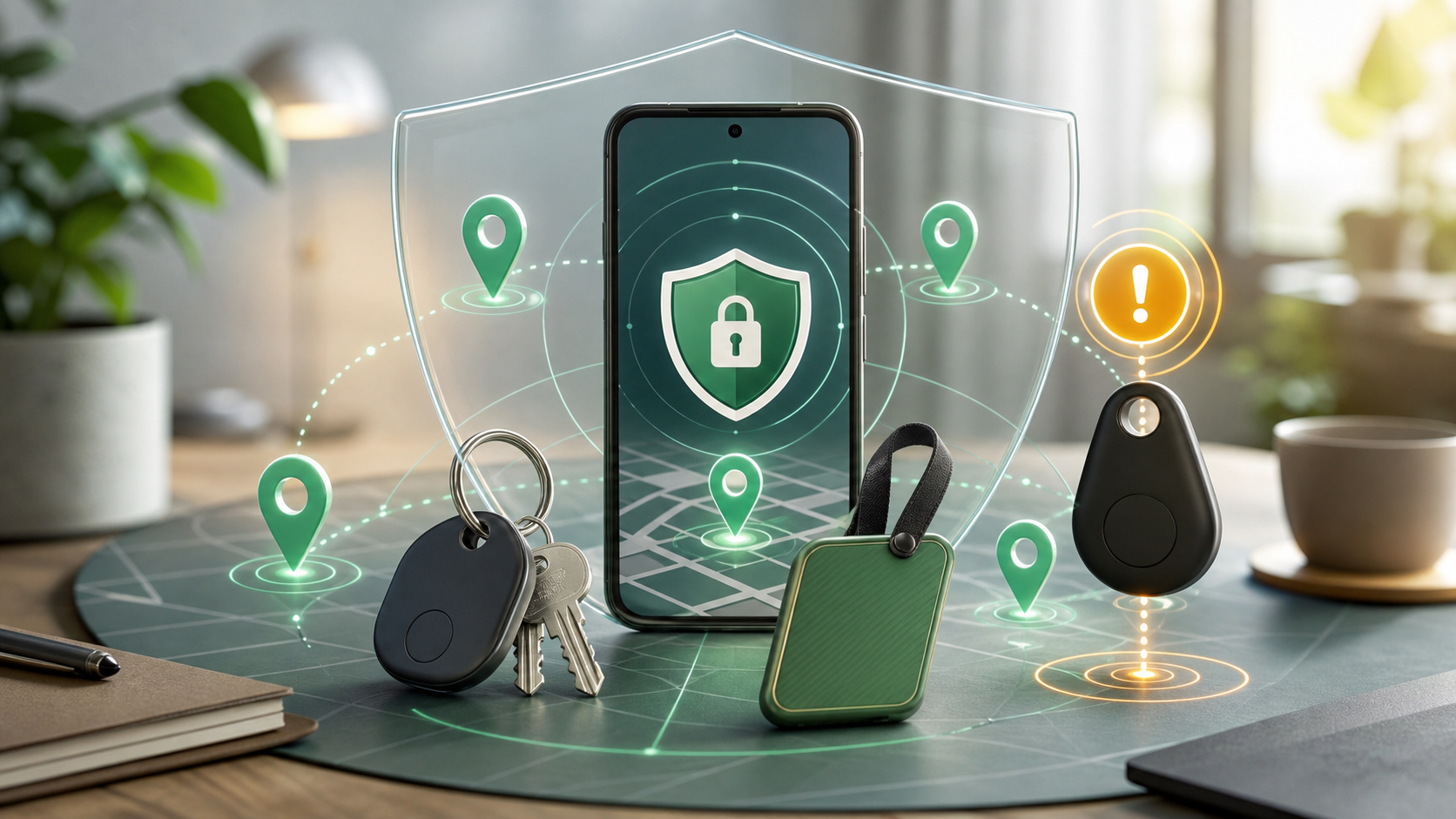
Updated May 18, 2026. Find Hub combines two different safety jobs: helping you recover your own devices and warning you about trackers that may not belong to you. Those jobs share location signals, but they require different decisions from the user.
The Recovery Map
Find Hub is the evolution of Google's older Find My Device feature. Google describes it as a unified place for locating devices, tagged items, and trusted people. The system can help find Android phones and tablets, Wear OS devices, Fast Pair accessories such as compatible earbuds, and compatible tracker tags attached to things like keys, wallets, bikes, or luggage.
The big shift is offline finding. A lost device is not always connected to Wi-Fi or mobile data. Find Hub can use encrypted recent location information and a crowdsourced network of participating Android devices to help locate offline items. Nearby Android devices can detect compatible items over Bluetooth and securely send location information to Find Hub so the owner can see where the item was last detected.
For users, that means a lost item may be findable even after it is offline. For privacy, it means users should know how their own phone participates in the network and which participation setting they prefer.
The Network Participation Choice
Google's Android Help documentation says Find Hub is automatically turned on when a Google Account is added to a device. By default, Android stores encrypted recent locations with Google and participates in the Find Hub network.
That does not mean everyone should leave every setting untouched. The important page to review is Find Hub's offline finding setting, where users can control how their Android device participates in the network.
Google lists several participation choices. Turning the feature off disables offline finding and network participation. The “without network” style option avoids participating in the broader crowdsourced network while still storing encrypted recent locations for your own device and connected accessories. Other options allow broader network help, including a more privacy-preserving high-traffic setting that is designed to require multiple nearby Android devices before a location is used.
The best choice depends on your risk model. A frequent traveler with tracker tags may want stronger offline finding. Someone with a sensitive personal safety concern may prefer to reduce participation. A parent setting up a child's phone may care most about recovery and account security. The point is not that one setting is correct for everyone. The point is that it should be a conscious setting, not a forgotten default.
Why The Lock Screen Is Part Of Recovery
Find Hub's stronger offline finding depends on device security. Google says the Find Hub network encrypts item locations using a unique key that only the user can access by entering the Android device's PIN, pattern, or password. Google also tells users to set a PIN, pattern, or password to take advantage of the network and get the best offline finding experience.
That makes screen lock a recovery feature, not just a privacy feature. A phone with no lock is easier for someone else to open if it is lost. It may also limit how well the user can benefit from the encrypted Find Hub network.
Before relying on Find Hub, check three basics:
- The phone has a PIN, pattern, or password.
- The Google Account on the phone is one you can still access.
- You know your Google Account recovery methods and two-step verification backup options.
Those checks matter because losing a phone often means losing a trusted device for sign-in. If your only two-step verification method is the missing phone, account recovery can become harder at the exact moment you need Find Hub.
Preparation Before The Device Goes Missing
The best time to configure Find Hub is while everything is still in your hand.
First, confirm Find Hub can see the device. On another Android device, use the Find Hub app, or visit android.com/find in a browser. Make sure the phone, tablet, watch, or accessory appears under the correct Google Account.
Second, check the device requirements. Google says that to secure or erase an Android device remotely, the device generally needs power, mobile data or Wi-Fi, an active Google Account sign-in, Find Hub turned on, and visibility on Google Play. Offline finding can help in some cases, but remote locking and erasing still depend on the device and network conditions.
Third, decide what you would do if the phone is not recoverable. Find Hub can play a sound, mark a device as lost, add a message or phone number to the lock screen, and erase a device. Erasing is serious. Google warns that after a device is erased, its location will no longer be available in Find Hub. That means erase should usually come after you have decided recovery is unlikely or the data risk is more important than continued tracking.
How To Read An Unknown Tracker Alert
Find Hub is not only about your own items. Android also includes unknown tracker alerts.
Google's help page says an unknown tracker alert is sent when someone else's tracker is separated from its owner and is far away from the owner's phone. The alert tells you that a tracker may be moving with you and provides steps to learn more, find it, and decide what to do next.
Current Android support covers Find Hub network compatible tags, compatible headphones, and Apple AirTags. If you receive an alert, Android can show a map of where the tracker was detected moving with you. You may be able to make the tracker play a sound, and for some Find Hub-compatible trackers, use a nearby finding flow to guide you toward it.
The key point is not to panic, but not to ignore it either. A tracker may be attached to something borrowed, such as keys, luggage, or a backpack. It may also be unwanted. The right response is to identify the tracker, preserve useful information, move to a safe place if needed, and decide whether to contact a trusted person or law enforcement.
If An Alert Appears
If your Android phone shows an unknown tracker alert, treat it as a safety signal.
- Open the alert and review the map.
- Check whether the tracker could belong to someone you are traveling with.
- Use Play Sound if it is safe and available.
- Take screenshots of the alert, map, and any tracker information.
- Search bags, car compartments, jackets, and borrowed items.
- If you feel unsafe, go to a public place and contact a trusted person.
- Follow manufacturer instructions before disabling the tracker.
- If law enforcement is involved, keep the tracker and identifier information when safe to do so.
Google notes that turning on airplane mode or turning off Bluetooth or location services does not stop the tracker itself from sharing its location. To stop future updates from the tracker, you need to follow the manufacturer's disable instructions. Depending on the situation, turning it off immediately may or may not be the safest choice, especially if you are concerned about preserving evidence.
Manual Scan Has A Narrower Meaning
Android also lets users run a manual scan for nearby separated trackers. That can be useful if you are worried after a trip, a ride, a date, a repair visit, or a shared event.
Manual scanning has limits. It looks for compatible trackers that are currently near you and separated from their owner's device. A tracker found in a manual scan may be misplaced or temporarily separated, not necessarily malicious. Likewise, a lack of a manual-scan result does not prove that no tracking risk exists.
Use manual scan as a practical check, not as a complete safety guarantee. Automatic alerts are designed to warn when the system determines an unknown tracker is moving with you. Manual scan is a tool for checking what is nearby at that moment.
Limits Of The Safety Net
Find Hub is useful, but it is not a complete personal safety or data protection plan.
It cannot guarantee recovery of a stolen device. It cannot make a dead battery report its location forever. It cannot erase data from a device that never comes online again. It cannot protect a Google Account with weak recovery settings. And unknown tracker alerts cannot detect every possible tracking method.
It also does not replace normal preparation: strong screen lock, account recovery options, two-step verification backups, regular photo and document backups, and a plan for what to do if a phone is lost while traveling.
For tracker safety, Find Hub is one tool among several. Personal safety judgment, trusted contacts, public locations, and local authorities may matter more than any app setting.
The Operating Habit
Find Hub is worth setting up before you need it. Check that your devices appear, review offline finding participation, set a strong screen lock, understand when erase is appropriate, and learn where unknown tracker alerts live in Android settings.
The feature is most powerful when users know both sides of it: how it helps recover belongings, and how it warns them when someone else's tracker may be following them.
FAQ
Is Find Hub the same as Find My Device?
Find Hub is Google's newer, broader version of the older Find My Device experience. It still helps locate Android devices, but it also covers compatible accessories, tracker tags, and location-sharing features.
Does Find Hub work when a phone is offline?
It can help in some offline cases through encrypted recent location storage and the crowdsourced Find Hub network. Remote actions such as securing or erasing a device still depend on the device and connection conditions.
Do I need a screen lock for Find Hub?
Google recommends setting a PIN, pattern, or password to take advantage of the Find Hub network and the best offline finding experience. The screen lock also protects the device if it is lost.
What should I do if I get an unknown tracker alert?
Review the alert, check whether the tracker could be from something borrowed or shared, use the available find tools if safe, save screenshots, and move to a safe public place or contact a trusted person if you feel unsafe.
Can turning off Bluetooth stop a tracker from tracking me?
Not by itself. Google says turning off Bluetooth, location services, or airplane mode on your phone does not stop the tracker owner's ability to receive the tracker's location. You need to follow the tracker manufacturer's disable instructions.